
AARP Hearing Center









































How to Add a Foreign Language (or Other) Keyboard on Your Phone
Using this option can help when learning another language

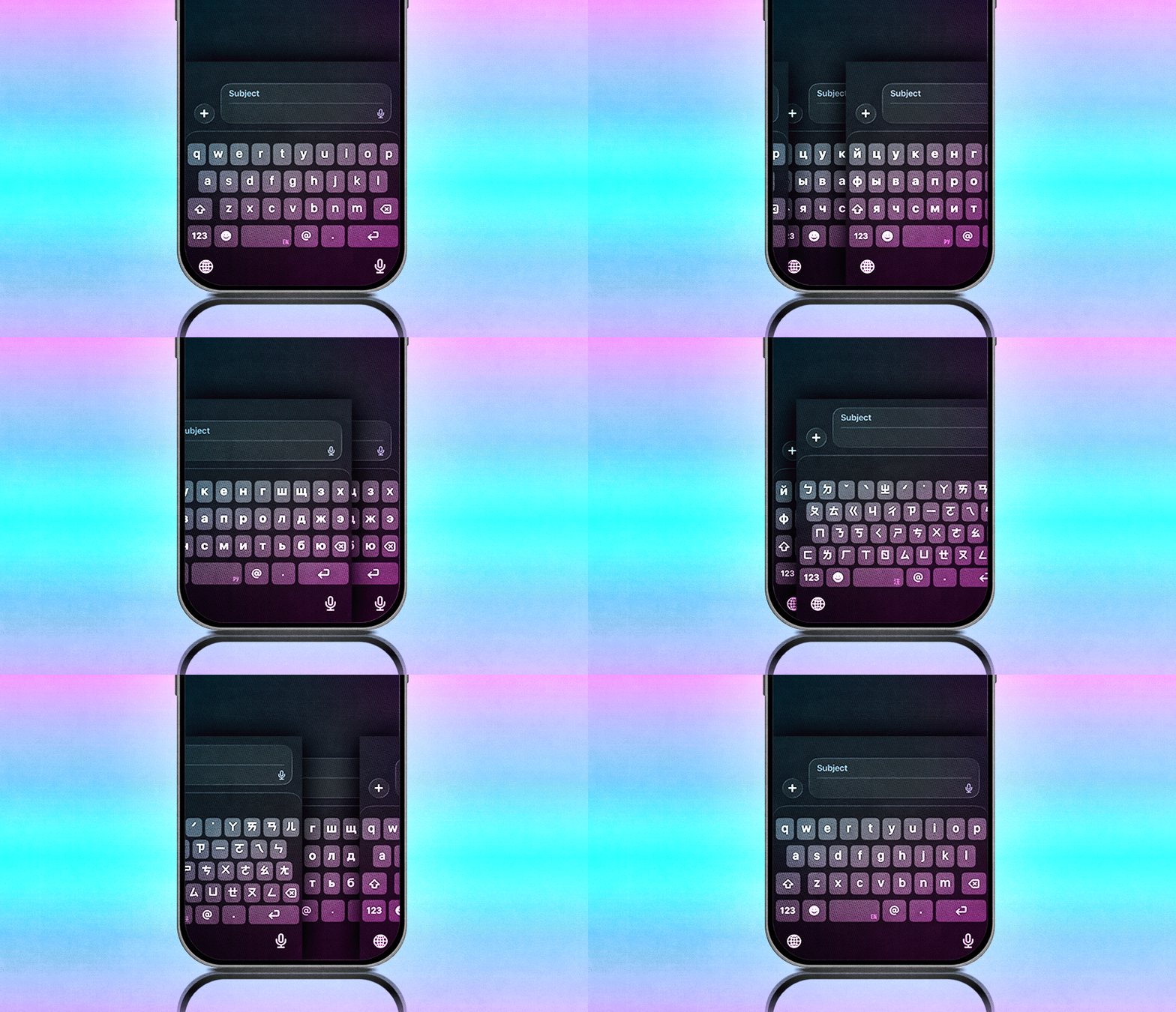
Adding a second or even a third keyboard is not only possible on iPhones and Androids, it's also pretty simple.
Paul Spella (Getty images 1)
Key takeaways
- You can add two or more keyboards to your iPhone or Android, including 160-plus+ language options on iPhone.
- Switching keyboards on iPhone is easyquick using the globe icon. Methods vary on Android.
- Multilingual keyboard options let you use two to three languages without switching keyboard layouts.
AARP members and readers are invited to submit pressing technology questions they’d like me to tackle in my Tech Guru column, including issues around devices, security, social media and how all the puzzle pieces fit together.
This week’s column is about customizing the keyboard you routinely tap or swipe on your phone.
More Ways to Benefit
- Related Benefit 1
- Related Benefit 2
- Related Benefit 3
- Related Benefit 4
- Related Benefit 5
I’m learning another language and thought it would be helpful to start using a keyboard for that language. How can I switch from an Americanized keyboard to another language?
Adding a second or even a third keyboard or more is not only possible on iPhones and Androids, it is also pretty simple. And you hit on one major reason to consider doing so: when you are learning another language.
Some people are already multilingual or have relatives whose native tongue isn’t English. If you’re messaging with them, it can be a hassle to type certain words or phrases on the “wrong” keyboard, only to have that keyboard autocorrect or predict the wrong word or words you want to type next.
While we’re on the subject, you may also want to switch to specialized keyboards, not because they are based on another language, but to provide funky layouts or alternate ways to enter text or symbols. I’ll touch on this below.
Ask a Tech Guru
Changing keyboards on an iPhone
Launch Settings | General | Keyboard | Keyboards | Add New Keyboard. Search or scroll through the list of keyboards, which Apple categorizes under Suggested Keyboards, Other iPhone Keyboards and Third-Party Keyboards.
Besides English, the list includes keyboards in more than 160 languages. The phone even includes variations of the same language. That is, there are four keyboard options for French (covering Belgium, Canada, France and Switzerland); three for German (Austria, Germany and Switzerland); and three for Spanish (Latin America, Mexico and Spain).
Beyond the U.S. default (assuming you bought your phone in this country), you will even find multiple English keyboards, including versions tailored for Australia, Canada, India, Japan, New Zealand, Singapore, South Africa and the U.K.
Tap the listing for any of the keyboards you’d like to add to your regular rotation.
Then, to summon a given keyboard when you are currently using another, tap the globe icon at the bottom left corner of the screen to toggle through any of the keyboards you’ve added; the name of the chosen keyboard will momentarily flash on the space bar.
There’s an alternate method, too: Touch and hold the globe icon for a moment, release, then tap the keyboard you want to use from the list of active keyboards that appears.
We’ll get to Android options further down.
How about multilingual keyboards?
In some cases, you can also choose a bilingual keyboard for the iPhone that lets you type up to three languages on a single keyboard layout without having to switch keyboards. The feature is limited to certain languages, and specifically the ones you select. Depending on what you type, it then automatically switches between the two you use most often: English and French, say, or Portuguese and Spanish.
If an English U.S. keyboard is the main one you use, you can add up to two additional Indian languages, including Bangla, Gujarati, Hindi, Marathi, Punjabi, Tamil and Telugu.
Tap Settings | General | Keyboard | Add New Keyboard and tap the language you want. If the language you selected is available, you will see an Add To English (US) Keyboard option.
Apple also lets you change the alphabetical layout for supported Indian languages.
What about third-party keyboards?
I alluded to third-party keyboards above. While an iPhone has numerous built-in keyboards, you can visit the App Store and search for keyboards published by other companies, some with different fonts, themes, AI features or alternate ways to input data.
Among the alternatives to the default iPhone keyboard are Google’s Gboard, Microsoft’s SwiftKey AI and Grammarly.
Once downloaded, you can add the keyboard to your phone the same way you add the built-in options. Go to Settings | General | Keyboard | Keyboards | Add New Keyboard, and under the listing for Third-Party Keyboards I mentioned earlier, tap the one you want to add. To summon it to active duty, tap the globe icon and choose it from your available keyboard options.
A warning: Apple cautions that such keyboards can access all the data you type, including bank account and credit card information, street addresses and other potentially sensitive information, and that you are subject to the keyboard developer’s terms and privacy policies.
Changing keyboards on Android
You have similar options on Android, whether you want to change the language or layout of a keyboard or add a third-party keyboard. But methods across the devices vary.

To change keyboards on a Google Pixel, for example, go to Settings | System | Keyboard | On-screen keyboard and tap the keyboard you are currently using from the list shown. Tap Languages | + Add keyboard and search or scroll down to the language you want to add. Tap that language. You will also see any third-party keyboards you previously downloaded onto the phone.
In some cases, you can tap a Multilingual typing option under the chosen language to automatically display word suggestions while you type with that keyboard.
For instance, if you launch a keyboard to start a chat in Google Messages and have set up multilingual typing to handle English, Spanish and French from that same keyboard, you will see EN+ES+FR labels on the space bar.
To change the keyboard you’re using on a Pixel, press down on the space bar to bring up a list of active keyboards on the device.
As I said above, all Android devices differ to some degree. So if you are looking for keyboard options on a Samsung Galaxy, start by going to Settings | General Management | Keyboard and choose a keyboard from the list.
And whichever Android phone or keyboard you are using, if you want to check out third-party alternatives, search the Google Play Store.
Bonus tip: Swipe instead of tap-typing
Most phones these days give you the option to either tap, swipe or slide your fingers across the letters. It truly is a matter of personal preference, and likely based on what you have gotten used to.
On iPhone, go to Settings | General | Keyboard, then toggle the Slide to Type switch, which is on by default. That doesn’t commit you to the swiping or the sliding method, but it does give you the option.
If you are using the default Google Gboard keyboard on a Pixel, go to Settings | Keyboard | On-screen keyboard | Gboard | Glide typing, and make sure the switch is on. Now you can tap or slide your finger from letter to letter. The Pixel also has a Glide delete option that lets you wipe out words on the display by gliding left from the Delete key.
The key takeaways were created with the assistance of generative AI. An AARP editor reviewed and refined the content for accuracy and clarity.

AARP Membership
Join AARP for only $15 per year with automatic renewal. Get instant access to members-only products and hundreds of benefits, a free second membership, and a subscription to AARP The Magazine.
You Might Also Like
Steps to Try When Important Texts Disappear
Deleted messages linger in Trash or Recently Deleted folders for a limited time
When Smartphone Focus Silences the Wrong People
Focus modes reduce distractions but can also block calls and texts you may expect
Don’t Refresh Smartphone Apps in the Background
It’s a trade-off: longer battery life versus keeping everything timely and up-to-date