


AARP Hearing Center
















































Animation: AARP
Key takeaways
- Reusing a strong password across accounts increases risk if one site is breached.
- Longer passwords using symbols, or memorable passphrases, are harder to crack than short ones.
- Password managers can generate and store complex logins for you.
Cybercrimes have skyrocketed in recent years, with older adults suffering the greatest financial impact. Americans age 60 and older reported losses of $7.7 billion to the FBI in 2025 — about a 60 percent increase from 2024. In comparison, those in their 30s and 40s reported $4.6 billion in losses.
But these figures don’t represent fraud’s real impact: In December 2025, the FTC reported that losses in a single year may have reached $196 billion when accounting for underreporting.
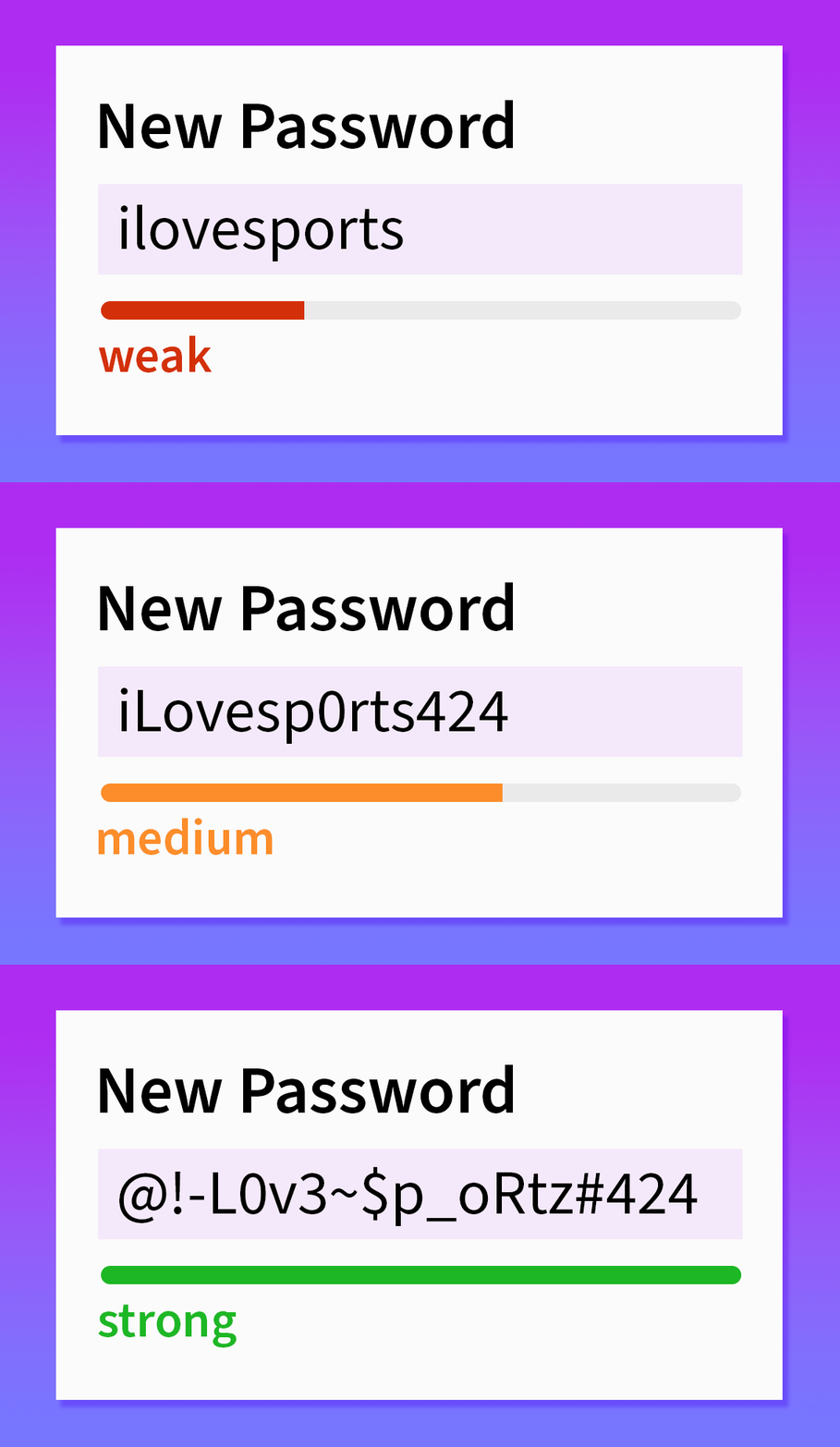
Unfortunately, many of us inadvertently assist these criminals by using easily crackable passwords. We’ll reuse the same passwords over and over, or choose obvious terms like a pet’s or a child’s name (or, worse, something like 1234abcd), instead of taking recommended safety measures, such as using passwords at least 12 characters long and a complex combination of letters, numbers and symbols.
One key solution is to use a password manager app, which generates random, complicated passwords to log in to online accounts. Most commercial password manager apps, such as 1Password, Bitwarden, Dashlane, Keeper Security and LastPass, are subscription-based.
Otherwise, follow these rules to create unique, secure passwords to store your information safely.
1. Be unpredictable in your keystrokes
Join Our Fight Against Fraud
Here’s what you can do to help protect people 50 and older from scams and fraud:
- Tell lawmakers to stop criminals from using crypto kiosks to steal from us.
- Sign up to become a digital fraud fighter to help raise awareness about the latest scams.
- Read more about how we’re fighting for you every day in Congress and across the country.
- AARP is your fierce defender on the issues that matter to people 50-plus. Become a member or renew your membership today.
Choose random words instead of those in a well-worn dictionary. Cybercriminals often run programs that cross reference dictionaries to crack passwords. If you would play the word in a game of Scrabble, don’t use it as a password.
Avoid personal details, too. Steer clear of birthday or anniversary dates to unlock your smartphone or gain access to sites. Cybercriminals get clues by looking at social media posts or phishing for information through bogus emails.
Don’t opt for often-used, far too simple combinations such as 123456, password, admin, 1234, UNKNOWN, 12345678, 123456789, 12345, abc123 and Password.
2. Embrace variety
Never repeat the same password, even if it’s super strong like f!P%^&TRf04. If you use the same password on multiple accounts and your system is breached, cybercriminals not only know your password but also can figure out all the sites and apps you visit.
Also avoid using repetitive letters or numbers to make a password longer. Password may be weak, but so is paaaassword. Sequential numbers and letters, such as qwerty, the top row of letters on an English-language keyboard, have the same problem. Don’t add the next four letters either: qwertyuiop.


More on Protect Yourself From Fraud
15 Worst Things to Carry in Your Wallet
With identity theft rampant, keep only the essentials in your pocket or purse