

















































Javascript is not enabled.

Javascript must be enabled to use this site. Please enable Javascript in your browser and try again.

Skip to content
Content starts here
CLOSE ×
Search
CLOSE ×
Search
Leaving AARP.org Website

You are now leaving AARP.org and going to a website that is not operated by AARP. A different privacy policy and terms of service will apply.

Worried Your Email Provider May Go Away? How to Preserve Old Messages

You want to securely hang on to your missives from the past, just in case


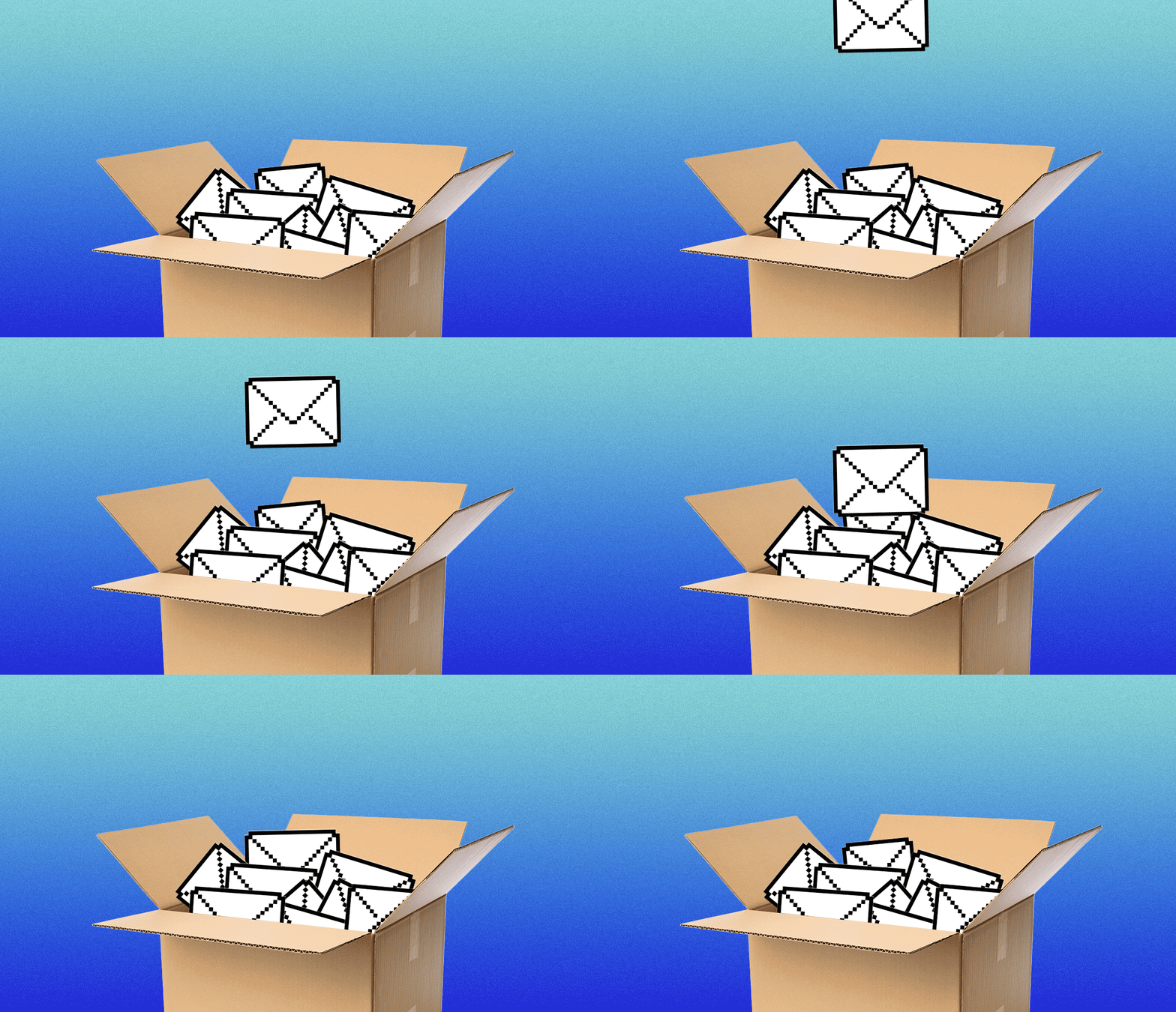
a gif of an email icon dropping into a box of other messages
AARP (Getty Images, 2)

AARP members and readers are invited to submit pressing technology questions they’d like me to tackle in my Tech Guru column, including issues around devices, security, social media and how all the puzzle pieces fit together. This week’s question addresses what to do with your old emails if you think you may have to take your account elsewhere.

I have been a Yahoo email user for many years, but [I am concerned about its future]. Is there a way to secure my data? I would like to start using Gmail, but my life is in Yahoo, and I would be lost without my records being immediately available. — Eileen S.

Eileen, Yahoo is one of the internet’s legacy brands, and while I cannot speak to its long-term future, it has had a bumpy ownership history. That said, Yahoo is still very much alive, and I’m hardly ready to predict its imminent demise.

Yahoo Mail currently ranks second only to Google’s Gmail among U.S. market providers, according to Statista Consumer Insights. The current owner, Apollo Global Management, a private equity firm that acquired Yahoo from Verizon in 2021, has been working to reinvigorate the business.

Perhaps it is telling that Apollo held on to Yahoo while announcing a recent sale of another once-iconic internet brand (and famous email provider) that it also bought from Verizon in 2021, AOL, to an Italian tech company called Bending Spoons.

Whether or not you pay close attention to the business pages, I understand your wanting to preserve and protect the emails you’ve built up at a given provider, whoever it may be, and to keep your options open should you for any reason want to bolt to a rival, or discover that your mail suddenly is no longer available. I’m not suggesting you do or don’t leave Yahoo, but if the rival provider you want to migrate to is Gmail, as you mentioned, I’ll address how to proceed in a moment.

Ed Baig

Ask The Tech Guru

AARP writer Ed Baig will answer your most pressing technology questions every Tuesday. Baig previously worked for USA Today, BusinessWeek, U.S. News & World Report and Fortune, and is author of Macs for Dummies and coauthor of iPhone for Dummies and iPad for Dummies.

Have a question? Email personaltech@aarp.org​

Maybe the most important thing to recognize off the bat is that you don’t have to junk one free email service to use another. So you can stick with Yahoo! and open a Gmail or other email account.

You can then forward mail from your old provider to your new one, a topic I previously addressed in this column, along with ways to notify contacts of your latest email address.

Forwarding old messages remains a viable option, and in some instances the best one moving, well, forward, but if you have a lot of past messages you want to retain, combing through and cherry-picking those you want to forward may require an awful lot of manual labor. Not all emails are created equal, meaning some will presumably be more important to hang on to than others.

You can certainly archive or save important emails and in some cases even print them out, though again you may have too many messages to make that a realistic option.

Yahoo does not let you download email directly to your computer. But you can access Yahoo Mail via a third-party desktop email program such as Microsoft Outlook or Mozilla Thunderbird and save the mail on your PC.

A technical detour: POP or IMAP. Sorry if this gets a tad technical, but prominent email providers, including Yahoo, support email access standards known as POP3 (Post Office Protocol 3) and IMAP (Internet Message Access Protocol), usually both.

IMAP is the newer protocol. Given a choice of how you want to retrieve mail, it is often preferred because it syncs with a remote email server and lets you check your mail from pretty much any internet-connected device, including computers, phones and tablets. The downside is that if that email server ever goes away (or the business behind it does), your messages may be lost, unless you’ve arranged to save the mail to a “local” machine.

POP mail retrieves and stores mail on your local computer or another device, after which the mail disappears from the remote server unless you take other measures. Thus, it may be less convenient if you want to check your email on a phone or other device.

Migrating to Gmail

Since you asked, if you want to move your email account to Gmail, start by signing up for a Gmail account, assuming you don’t already have one.

Visit mail.google.com on the web and click the Settings icon in the upper right corner, which resembles a gear. Choose See all settings | Accounts and import | Import mail and contents. This is not only where you’d go to import a Yahoo account, but also AOL, iCloud, Hotmail or other webmail or POP3 accounts.

Enter the email address for the account credentials you are moving under What account do you want to import from? Or choose from the drop-down list if you see another email account you want to bring over. Make sure POP access is turned on in that other account. Click Continue. You must sign in to that account to confirm everything, including moving over contacts, and then click Continue again. You’ll be returned to Yahoo or to the account you’re moving from; in Yahoo’s case, click Agree to give Gmail access to emails and attachments. Click Not Now if you change your mind or want to try later.

If you do agree, click Start Import. Gmail forwards messages from your old account for the next 30 days.

It may take several hours or up to two days, Google says, before you start to see imported messages, which takes place in the background.

Google specifies that you cannot connect email accounts that don’t meet secure connections; Yahoo certainly does. And be aware that while you can import messages from another account, Google adds that you can’t bring folders or labels with you.

Bonus tip: Heed warnings if you are not the person importing third-party email

After going through the exercise of importing email from another account, you will receive email warnings from Google and, in this case, Yahoo, indicating that through something called ShuttleCloud Migration, your account was accessed by someone else. This is expected if you happen to be that someone else.

But if you receive such warnings when you did not initiate a switch, you can revoke access by heading to the Recent Activity tab under Account at yahoo.com, or by clicking the link in the Yahoo warning email.

On the Gmail side, click the Check Activity button in the security warning that Google sent. If you recognize the activity, click, Yes, it was me. If not, select No, secure account.

If you suspect unauthorized access, change your password immediately, which Yahoo says will sign you out of all devices except the account you are using.

Unlock Access to AARP Members Edition

Join AARP to Continue

Already a Member?

Join AARP for only $11 per year with a 5-year membership. Get instant access to members-only products and hundreds of benefits, a free second membership, and a subscription to AARP The Magazine.