



AARP Hearing Center




























































AARP (Getty Images)
AARP members and readers are invited to submit pressing technology questions they’d like me to tackle in my Tech Guru column, including issues around devices, security, social media and how all the puzzle pieces fit together. This week’s question addresses digital calendars.
How do you create and save a new Outlook calendar and access the list of calendars? — Donn L.
Donn, your question brings to mind all those paper appointment books and day planners some folks had back in the day. Turns out the reasons they had them aren’t much different now that digital calendars are predominant.
For instance, you may want one calendar for all your doctor visits and grooming appointments, and another for tracking birthdays and anniversaries.
Maybe you have a work calendar filled with project deadlines and meetings with colleagues and clients.
Still others might be devoted to national and/or religious holidays.
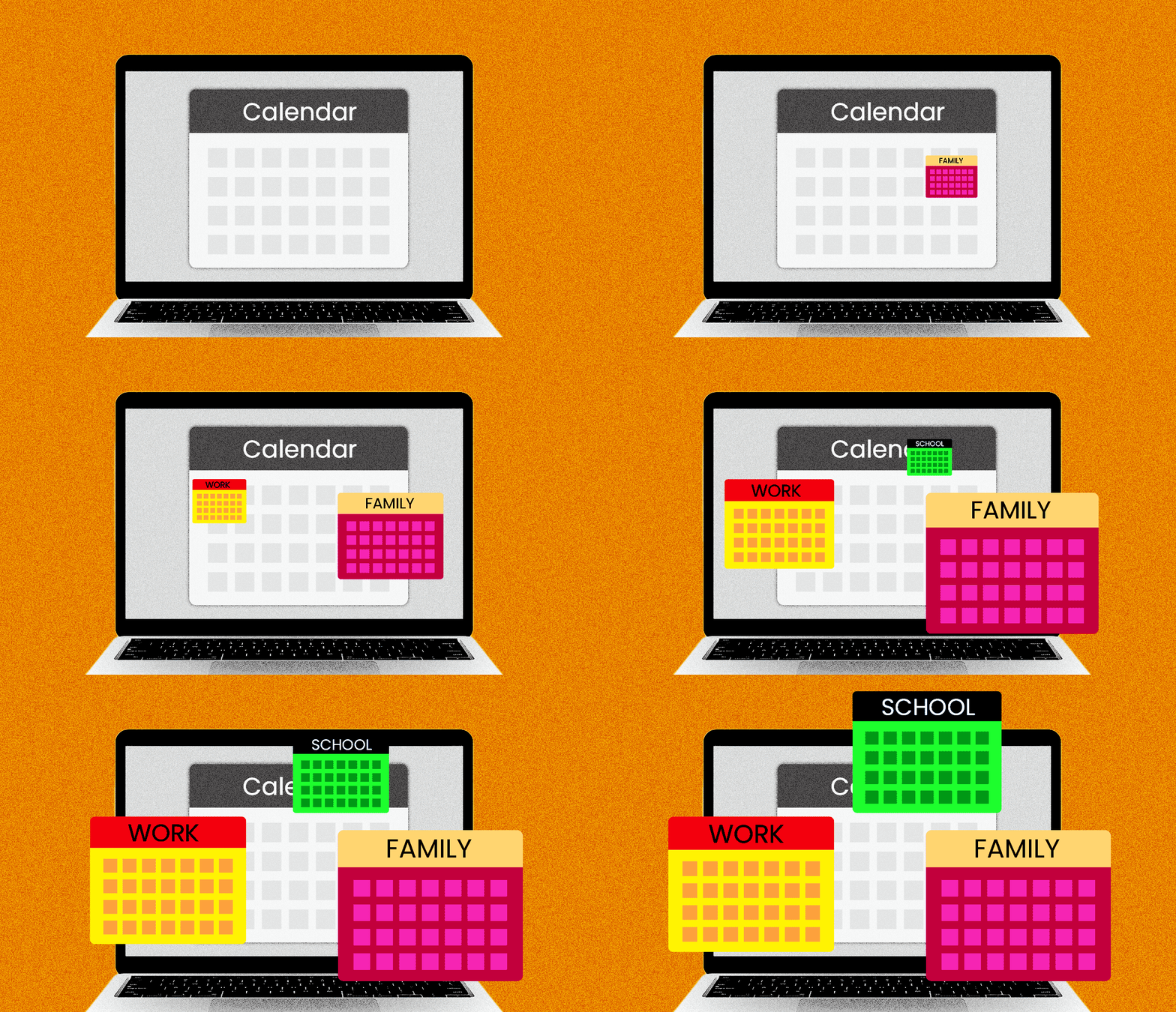
If you’ve got kids in school, they might have a separate calendar with class schedules, homework deadlines and even the varsity football team’s schedule. But as a parent, you want to stay on top of those dates, too.
Indeed, you may want to share a family calendar with everyone in the household, so you know what the kids and grandkids are doing, and they in turn know what you’re up to.
Obviously, the more calendars you have, the greater the chance that entries in one can overlap or bump into appointments in others, underscoring the need for a unified calendar that includes pretty much all the above.

Ask The Tech Guru
AARP writer Ed Baig will answer your most pressing technology questions every Tuesday. Baig previously worked for USA Today, BusinessWeek, U.S. News & World Report and Fortune, and is author of Macs for Dummies and coauthor of iPhone for Dummies and iPad for Dummies.
You can achieve this via Microsoft Outlook, which you specifically asked about, as well as numerous other shareable calendar apps baked into PCs, Macs, iPhones and Android devices, or available through third-party apps.
Benefits of a digital calendar. The beauty behind digital or cloud-connected calendars, compared to those day planners of yesteryear, is that if you enter or modify an appointment on one device, it can be automatically reflected on all your other devices that have the app or calendar you’ve logged into.
Plus, you can receive alarms and notifications in advance of your appointments — try that on an old-fashioned paper calendar.
What’s more, you can not only type in calendar appointments but also ask digital assistants like Siri or Google Assistant/Gemini to enter those appointments for you.
It’s also simple to move items between calendars.
I’ll focus here on using Outlook on a computer, but keep in mind that other calendar programs and apps offer most of the same features.
A quick aside: You may be understandably confused about which version of Outlook you are using. Outlook is a staple on Windows PCs and in the workplace, but also available on Macs, phones and tablets. There are two versions of Outlook for Windows: the new Outlook for Windows, as Microsoft calls it, and the classic Outlook for Windows.
There are web-based versions as well: Outlook.com and Outlook on the web. The latter typically is what you have with a work or school account, whereas Outlook.com is what’s typical through a personal Microsoft account. You may subscribe through Microsoft 365.


You Might Also Like
Hide Your Email Address to Cut Down on Spam
Consider an alias to mask your online identity and help you sort through the junk
Can a Windows Person Become a Mac Person?
Switching platforms may not be the shock to your computing psyche you think it is
I Sent a Text Message. Did the Person Read It?
You can turn read receipts on and off