AARP Hearing Center




















.jpg?anchor=17,8&q=80&color=ffffffff&u=8wsalu&w=375 "Fall Movie Preview 2026")















How Do I Use My Phone as a Wireless Hotspot?
No Wi-Fi? No problem. Securely share cellular data with your laptop or tablet

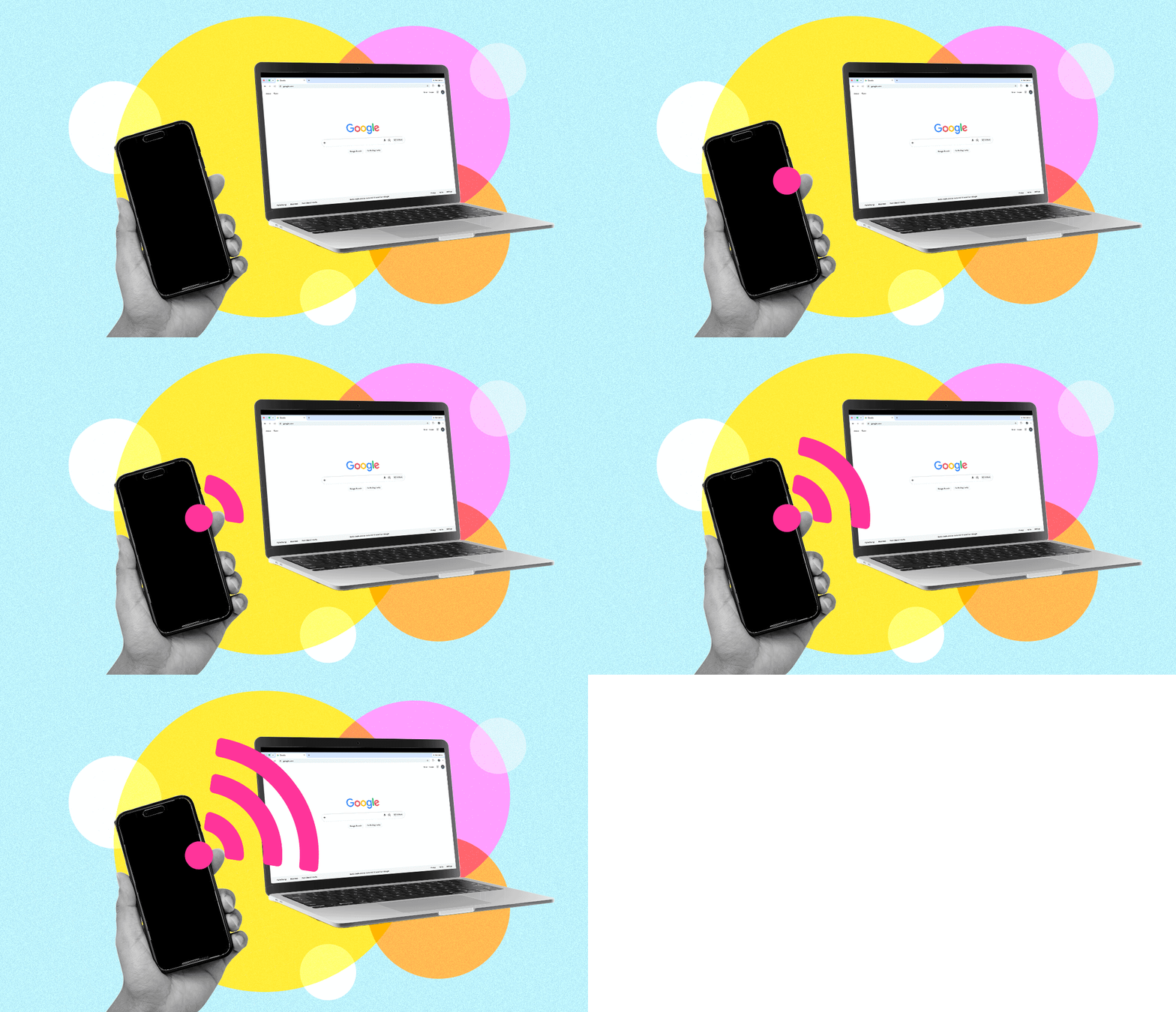
Turn your smartphone into a hotspot for a more secure and reliable internet connection wherever your travels take you.
AARP (Getty Images, 2)
Key takeaways
- A smartphone hotspot can turn a cellular connection into a secure internet source for a laptop, tablet or other device.
- Hotspot use requires a carrier plan that supports the feature, and may limit devices or high-speed data.
- iPhone and Android users can also share a connection via Bluetooth or a USB cable, each with its own trade-offs.
Got a tech question? AARP members and readers are invited to send me their questions about devices, online safety, social media and navigating today’s technology.
I want to use my iPhone as a hotspot for my iPad while traveling. Please explain how? —Cathy G.
More Ways to Benefit
- Related Benefit 1
- Related Benefit 2
- Related Benefit 3
- Related Benefit 4
- Related Benefit 5
Thanks for your query, Cathy. Finding a decent and secure internet connection that lets us browse, stream and communicate with family, friends and colleagues while on the road can be a mission in itself.
And it’s a major reason why people should consider turning their smartphones into a mobile hotspot rather than relying on the ubiquitous but not always secure or reliable Wi-Fi networks at airports, train stations, coffee shops, hotels, libraries and even public parks.
Such hotspots convert the cellular data connection on your phone into a Wi-Fi signal that can be shared with other devices, notably the computer and/or tablet you’re schlepping along with the phone, and do so more securely than those public networks. The connection may be faster as well, since you’re not competing for broadband with other people.
Remember, the phone itself that you’re using as the hotspot doesn’t require Wi-Fi. In fact, you can only operate such a hotspot off a cellular connection, Apple says, meaning you cannot connect an iPhone to a Wi-Fi network and then try to share that network with another device.
What’s more, you can share a hotspot connection with fellow travelers to whom you have given the hotspot password, thus preventing interlopers or even hackers from piggybacking off the signal.
I’ll quickly point out that while iPhones and most Android phones have hotspot capabilities, you can also purchase dedicated mobile devices or travel routers that provide internet.
It is important to flag that just because iPhones and Androids can function as hotspots, you will still need a data plan from your cellular carrier that supports the feature. It may be bundled with your existing plan or require an extra fee.
Your plan and the iPhone model you have may also limit the number of devices that can join your hotspot at any one time, and/or the amount of high-speed data included with the feature.
Apple adds that certain apps or features that require a Wi-Fi connection may also not work off a hotspot. For example, you might not be able to upload photos to an iCloud Photo Library.
That said, here’s how to proceed.
Setting up a hotspot on an iPhone
Launch Settings | Cellular | Set Up Personal Hotspot. By default, the name of the hotspot is the same as the name of your phone, “Ed’s phone,” or whatever. You can change the name at Settings | General | About | Name.
If you don’t see Set Up Personal Hotspot as an option, contact your carrier about adding it to your plan.
Next, choose a strong password for the hotspot. If you’re in a Family Sharing group, Apple gives you the option to automatically share the hotspot with some or all members in that group, or make them ask for your approval.
Once set up, tap Allow Others to Join.
Now, whether you’re using your own tablet, computer or another phone, you will see the hotspot listed with all the other available Wi-Fi networks in your area. Tap the name, enter the password if required, and you should be good to go.
If you’re still having trouble connecting other devices, make sure their software is up to date and turn on Maximize Compatibility in the phone’s Settings, which provides the hotspot. While it may allow you to connect certain devices, Apple warns that when Maximum Compatibility is turned on, the performance of devices connected to the hotspot may be reduced.
When you’re not actively using the hotspot, the iPhone will automatically disconnect to preserve battery life.
Setting up a hotspot on an Android
I’ll use a Google Pixel as a general guide, but since Android devices differ, the names of the instructions or labels you see here may look a little different on another brand’s device.
On a Pixel, launch Settings | Network & internet | Hotspot & tethering| Wi-Fi hotspot.
Make sure the Use Wi-Fi hotspot button is toggled on, choose a security option from the list on the phone, or choose no security at all, which I would not recommend. You want to create a robust password for the hotspot.

Consider turning on the Turn off hotspot automatically switch to help save the phone’s battery when the hotspot is not in use, which, as mentioned above, happens automatically on an iPhone.
Certain Pixel models also let you choose a hotspot speed and frequency, which affects which devices can find it. According to Google, the speed you choose could alter the security settings for the hotspot.
Finally, an Instant hotspot option lets you automatically share access with your own devices without having to type passwords. Such devices should be signed into the same Google Account and have the Use cross-devices button toggled on. Tap Internet sharing, then make sure both Automatically share Wi-Fi and Instant hotspot are on.
Bonus tip: Use Bluetooth or USB to connect
Hotspot options available on both iPhones and Androids also let you use Bluetooth or a tethered USB cable to share an internet connection.
If you want to connect a phone to a laptop via Bluetooth, you must pair them, typically by entering the code on the phone that is displayed on the computer’s screen. Check the laptop’s own settings for anything that needs to be turned on there.
While Bluetooth provides a low-power, convenient and generally secure option for a single phone and device, the connection tends to be slower than a Wi-Fi hotspot. It isn’t helpful if you want to provide internet to multiple devices at once.
USB tethering typically provides a fast and secure connection. But there’s at least one obvious drawback: You must plug a compatible cable into both devices. It is inelegant. And it potentially limits your mobility.
The key takeaways were created with the assistance of generative AI. An AARP editor reviewed and refined the content for accuracy and clarity.

AARP Membership
Join AARP for only $15 per year with automatic renewal. Get instant access to members-only products and hundreds of benefits, a free second membership, and a subscription to AARP The Magazine.
You Might Also Like
A Guide to Silencing Smartphone Notifications
Adjust sound options and app controls to minimize distractions
Why to Look Inside Your Smartphone’s Settings
You can customize a phone to make it your own
Switching Between iPhone and Android Made Easy
You can transfer most, but not all, apps and data