
AARP Hearing Center






















.jpg?anchor=17,8&q=80&color=ffffffff&u=8wsalu&w=375 "Fall Movie Preview 2026")
















What Do I Do When Photos Are Too Big to Send Over Email?
Solutions include shrinking the image, sending a link or dispatching fewer pics at once

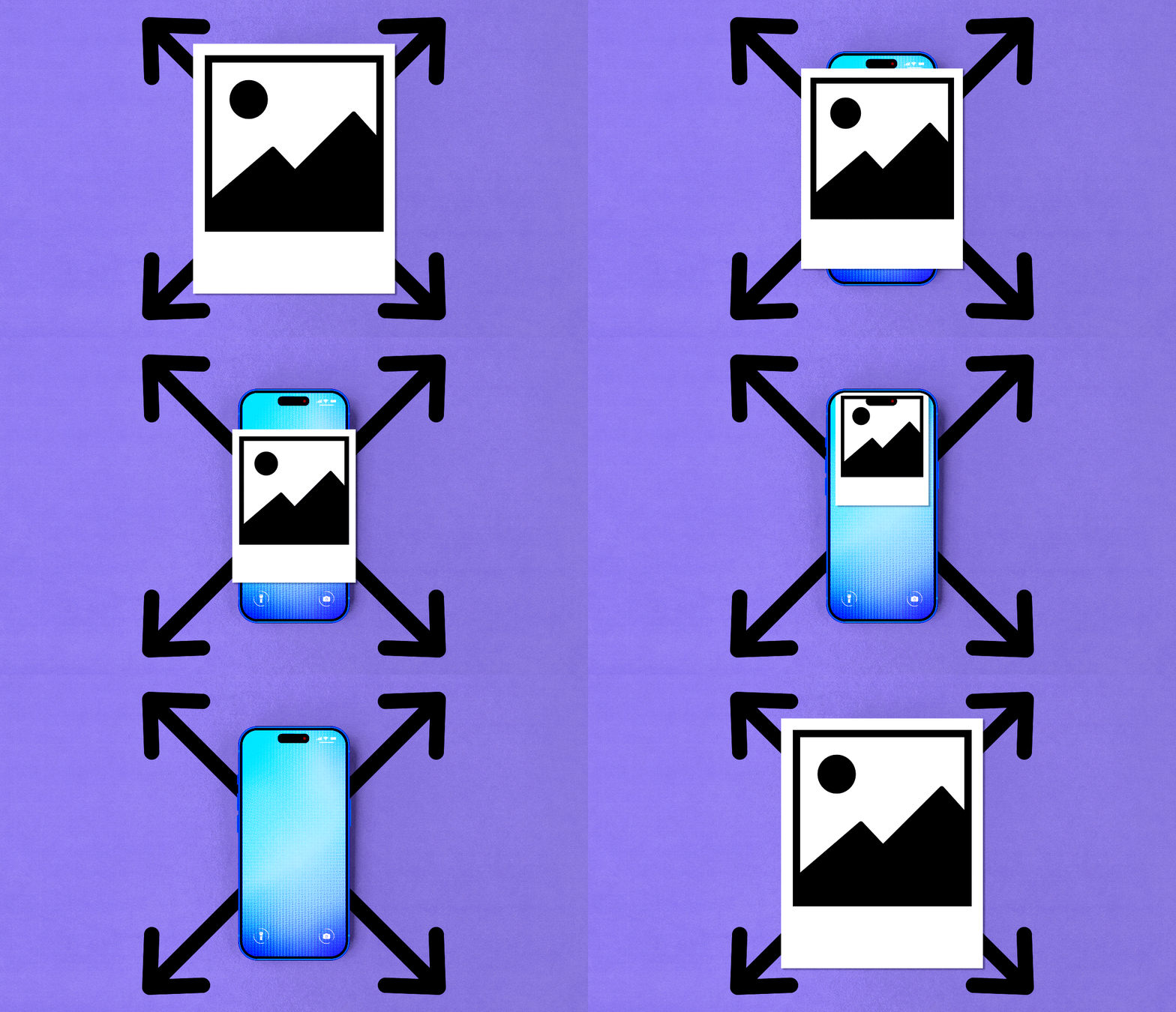
Don’t let email attachment limits stand between you and your memories. Simple tools make sharing photos fast and easy.
Paul Spella (Getty Images)
Key takeaways
- Email providers typically cap attachments at 20MB-25MB, making large photo batches difficult to send.
- Upload photos and send a link to cloud services such as Google Drive, Mail Drop, OneDrive and Dropbox.
- Reducing image size can dramatically shrink an email, but it also affects the quality of the photos.
Got a tech question? AARP members and readers are invited to send me their queries about devices, online safety, social media and navigating today’s technology.
I’ve tried emailing a batch of pictures, but couldn’t do so because of attachment size limitations. Short of sending a few images at a time, are there other work-arounds?
More Ways to Benefit
- Related Benefit 1
- Related Benefit 2
- Related Benefit 3
- Related Benefit 4
- Related Benefit 5
I periodically hit the same frustrating roadblock as you, and it is usually because email providers impose caps on the total attachment size we are permitted to send per email. Photos tend to be large files, so sending just a few can bump you up against those limits. And I’m not even talking about even larger video files. Google limits us to 25 megabytes (MB) for sending attachments through personal Gmail accounts, though the cap differs for school or work accounts that use Google Workspace. Apple’s iCloud.com limit is 20MB for both incoming and outgoing messages, with an exception I’ll mention below. Yahoo Mail is at 25MB. And Microsoft’s Outlook.com size limit is 20MB, though limits may differ for business or corporate accounts.
To put it in perspective, you’ll easily gobble up 25MB with just a handful of high-resolution smartphone photos. At a somewhat lower resolution you may get up to a dozen images, though fewer is more likely. And if a picture was captured in what professional photographers call raw files, which are uncompressed and often outsized, good luck emailing even a single image.
As you hinted at in your question, an obvious, if not always practical, fix for common photo file formats is to send a few images at a time. But sending multiple messages is a hassle.
Bearing that in mind, let’s consider a couple of other common options.
Send a link
The good news is you may not have to think very hard about this option, because when necessary, you’re usually prompted to upload pictures to an online repository and share a link with your recipients.
What you might see in Gmail. After you exceed Gmail’s attachment limits, for instance, a pop-up tells you that your payload will be sent as a Google Drive link.
It’s worth noting that you can choose whether anyone with access to such a link can not only view the files but also edit or comment on them, similar to how things work in certain shared photo albums, a subject I tackled recently in another Tech Guru column.
What you might see in Apple Mail. Apple users trying to email pictures (or other large files) from the Mail app on a Mac, iPhone or iPad, or from iCloud.com, get up to 5GB of storage to work with when they use what’s called Mail Drop.
Attachments in Mail Drop are encrypted and land in iCloud. Email recipients will either see the Mail Drop link itself or the actual attachments. They have up to 30 days from the date the email was sent to download the files.
If you are signed in to iCloud and use Apple’s Mail app, large attachments will automatically be sent via Mail Drop after you hit Send. It’s worth noting that Mail Drop attachments do not eat into your iCloud Storage space.
If you’re using the Apple Mail app with another email provider, you may be asked if you want to use Mail Drop once you’ve exceeded the maximum size permitted by that provider.
On a Mac, you can toggle this option by launching the Mail app, clicking Mail in the menu bar, then selecting Settings | Accounts | Send large attachments with Mail Drop.
There is no Mail Drop toggle option on an iPhone.
What you might see with Microsoft Outlook. Among other places, upload options in Microsoft Outlook include Google Drive, iCloud, Microsoft’s OneDrive and Dropbox. Just copy and paste the link and send it in your email message. Outlook is often the default email on a Windows PC.
Size versus quality
As I mentioned earlier, the highest-resolution photos or files with the sharpest detail also hog the most space. If you can live with sending pictures that aren’t the best quality, consider compressing or reducing their size, or even cropping out some of the detail.
Apple lets you do so in the Mail app on your phone. After composing your message, attaching pictures and hitting Send (represented on iPhone by an upward-pointing arrow), a pop-up may appear indicating the total size of the outgoing message and giving you the chance to scale back the photos to Small, Medium or Large. You will see the numerical impact in parentheses, but you may get a better sense by viewing the image thumbnails embedded in the body of the outgoing email.
You can also tap Actual Size and attempt to send the photo(s) at that higher resolution. If you are exceeding the email threshold, a Use Mail Drop button will appear instead.
Similarly, after selecting pictures in the Photos app on a Mac, click the Share icon, then Mail, and you will see an Image Size drop-down with Small, Medium, Large and Actual Size options. The Message Size (for all the pics in the outgoing email) is shown on the left, so again you can see the numerical impact.
In one instance, I attached a dozen pictures to an outgoing email. Keeping the Actual Size at 46.5MB would exceed Gmail’s outgoing limit.
Reducing the image size to Large, Medium and Small dropped the totals to 6.7MB, 2.8MB and 1.6MB, respectively. The corresponding thumbnails in the body of the email were also reduced, giving you some indication of what your recipients will see.
In my case, sticking with Actual Size meant I could only send the email out if I chose Mail Drop.
If you’re using Microsoft Outlook on a Windows PC, you may be able to compress photos before sending them, though various iterations of Outlook handle the task a bit differently.

If you’re using what Microsoft refers to as the new Outlook on a Windows 11 or Windows 10 computer, which is most likely the version that’s preinstalled on a fairly recent PC, you can “zip,” or compress, files via a right-click menu or File Explorer tools. Once you’ve located the file or folder in question, right-click the file | Show more options | Send to | Compressed (zipped) folder. A new zipped folder with the same name is created; select Rename to rename it.
The truth is, this may not be your best option. Microsoft cautions that some files, including common JPEG images, are already highly compressed. Thus, if you zip several JPEGs into a folder, the total size of that folder won’t differ all that much from the original collection of pics.
Microsoft also notes that you can resize a picture in the body of an email in the new Outlook for Windows by selecting the Picture Format tab, then Size on the ribbon. But here’s the rub: While the display size of images inserted into the email changes, the actual file size is not reduced, doing you little good if you’re trying to get past size-limit email caps.
Thus, uploading photos to a cloud service and sending a link may be your best bet.
To reduce the size of an image using “classic” Outlook, the more fully featured desktop version of Outlook that you may have to download if it isn’t already on your machine (it’s often tied to Microsoft 365 accounts or Office suites), try this method: Attach the image(s) to the email, select File | Info, and under Image Attachments, choose Resize large images when I send this message.
According to Microsoft, you’ll know you have the new Outlook if you see a Settings button in the upper-right corner of the screen. The absence of such a button means you have classic Outlook.
Bonus tip: Google showcases sign-language-to-text feature
Translation apps and tools have gotten smarter over the past couple of years, making it much easier for people who speak different languages to communicate. But such tools haven’t done much good for deaf and hard-of-hearing users who rely on sign language.
That’s about to change. Google just unveiled an AI-infused sign-to-text accessibility feature in its new Pixel 11 smartphone that lets the phone recognize and understand American Sign Language (ASL). Google developed the feature with the deaf and hard-of-hearing communities.
Now, a deaf person can sign in front of the phone’s camera and dictate text in English to Live Transcribe or the Gboard keyboard app, or basically use dictation to sign anywhere they would normally type. Google says the feature, which is still in its early days and limited to this latest Pixel for now, will soon expand to other languages and devices.
The key takeaways were created with the assistance of generative AI. An AARP editor reviewed and refined the content for accuracy and clarity.

AARP Membership
Join AARP for only $15 per year with automatic renewal. Get instant access to members-only products and hundreds of benefits, a free second membership, and a subscription to AARP The Magazine.
You Might Also Like
How Do I Take a Screenshot on My Smartphone?
Whatever is on your screen can be instantly and easily captured
Why to Look Inside Your Smartphone’s Settings
You can customize a phone to make it your own
Transfer Photos From Phone to Computer
You can connect it via data cable or rely on the cloud